I'm always so pleased when I find a way round some exasperating computer problem that I thought I'd share my moments of triumph ...
Showing posts with label Microsoft Office for Mac 2011. Show all posts

Wednesday, 16 October 2013

PowerPoint into Word

Don't you feel frustrated that you can print out a Handouts file from your PPT presentation with neat lines beside the little slide images, but not type your speaking notes into that useful slot?

Simply by chance, I found a solution.

  • Open up your PPT presentation in Normal view
  • Open up a Word file and make a table 2 columns wide by however many rows long.
  • In the PPT presentation, click on the little slide image  and Copy it (cmd-C, or using a menu, as you wish)
  • In the Word file, click in a table cell, and Paste the copied image - cmd-V or using a menu

Oh my goodness! There is your slide in your Word file! It'll be too large but grab a resize handle and just make it smaller. Then you can type your notes into the table cell beside it.

The Word file will be massive, because all the images are saved at full size. You can reduce the Word file size by File > Reduce file size. This allows you to convert images to lower resolution, which won't matter for such small images. You can also do this for your PPT file but be careful you don't reduce the display quality.

Another route, takes a bit longer, is: in the PPT file, do File > Save as Pictures. That will make a folder with a jpeg image of each file. You can easily copy or drag each image into a Word file, and you could convert all the images to smaller dimensions first if you wanted to, in Preview or using image software such as Photoshop Elements to batch process.

Monday, 12 December 2011

Word for Mac 2011: sum table cells including blanks

Whoo, another Cracked-it moment!

Word 2011 for Mac - just acclimatising. At last an improvement on the previous version, except Help seems non-existent, even online. Whatever happened to the manual?

In a table, how to sum a column (or row) of figures that contains blank cells? AutoSum only adds up the immediate filled cells.

Put the cursor in the table cell where you want the total.
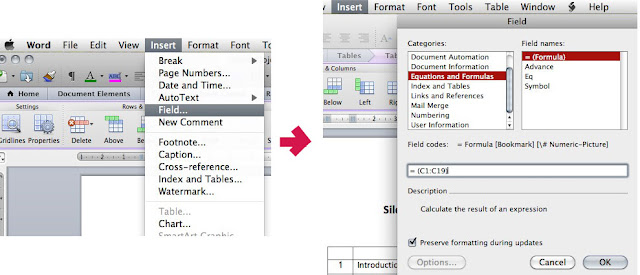
Top menu bar, go to Insert, then Field.
Type your required range in, e.g. =SUM(C1:C10).
Press return, and voila!

Field can be one of several useful items including word count, total etc.
Only snag is, the Field doesn't update automatically. To update it place the cursor in the field and right click - from the pull down menu, an option is Update field.