I'm always so pleased when I find a way round some exasperating computer problem that I thought I'd share my moments of triumph ...
Showing posts with label apps. Show all posts

Monday, 4 August 2014

Ebooks - best prices or free

I just discovered two fantastically useful applications / apps, invaluable if you read ebooks.

Luzme

First, Luzme.com, you can search for ebooks by title, author, ISBN etc and compare the prices. You can instantly buy the book, or add it to a watch list to get an email notice if the price changes. It turns out there huge differences between online bookstores. You see a little chart of price changes for each ebook store, too.

BitLit

Second, BitLit - from Canada - allows you to purchase an ebook version of a book you already own, free or at a reduced price. Smartphones only for this one. You scan the cover at a set angle, and then the copyright page to which you have added your name. BitLit is signing up publishers fast so your particular book may not yet be available.

Apple's iTunes Books

Luzme revealed that Apple (iTunes) was the least expensive source of one or two ebooks. I haven't tried Apple before as a source, but I duly did. However, iTunes warns you that you can only read your downloaded book on an iOS device, not even on your desktop Mac.

After initial optimism I found this is true, so far, for paid-for books. I cautiously acquired a couple of free ebooks from the iTunes Store - these are fine, you can transfer them around and read them on whatever device. Your book gets downloaded into your iTunes music library (under books) as an Adobe Digital Editions epub file.

Reassured, then I paid for one. The ebook seemed to open in Adobe Digital Editions and transferred into Calibre and on to my Kobo but alas, it is blank. The DeDRM tools don't work on it. So least expensive, yes, but so far very restricted use unless it's a free book.

Calibre ebook library and software

Just to remind you about the superb Calibre -

To manage your ebooks library and reader content using Calibre

Calibre is a generic ebooks management application, very handy, search to download it for free (be fair, do donate). Using Calibre you can:
  • manage the books on your ereader
  • assemble all your ebooks from whatever source in one folder
  • read them on your desktop 
  • automatically convert books from different formats for your own ereader, whatever that is
and much much more besides which I haven't tried out.

To set up Calibre to automatically convert books for upload

  1. Downloaded and instal Calibre
  2. Install the DeDRM plugins that you have already obtained
    - Go to Calibre's Preferences (under Calibre in the top menu)
    - Under Advanced, click Plugins
    - Select Load plugin from file
    - Navigate to the downloaded folder of Tools
    - In the sub folder inside that, Calibre plugins, click and load each of the zip files in turn
    - Click the green Apply tick, top left
  3. Repeat until all are installed. Restart Calibre.
Then, Calibre's menus are self explanatory. You can just add the book file to the Calibre library and upload it to your device - select Autoconvert and it will do the conversion as part of the process, as long as the DeDRM plugins are installed.

Wednesday, 19 March 2014

Watch BBC iPlayer via iPhone + Apple TV

Don't want to tie up your Mac streaming BBC iPlayer to your Apple TV? Easy, use your iPhone instead. Turn on AirPlay mirroring in your iPhone to stream direct to the Apple TV.

You need -
  • An iPhone 4s or later (or iPad 2, iPad mini, iPod touch)
  • Apple TV 2nd or 3rd generation

What to do 

  • Download the BBC iPlayer app from the app store
  • Make sure both the iOS device and the Apple TV are connected to the same WiFi network
  • Swipe from the bottom of the screen to show the Control Centre.
  • AirPlay is just above the 4 icon buttons at the bottom. Tap to turn on AirPlay.
  • Next screen - select the Apple TV to mirror to, then switch on mirroring.
Wow! you'd think it would be low res coming from such a tiny screen, but all the iPhone does is channel the WiFi signal to the TV, it doesn't go via the screen at all. Enjoy!

Wednesday, 26 February 2014

Five nice apps for your Mac

Five incredibly useful applications, I use them all the time. Free or worth the low cost.
  • Thunderbird (free) - A free open source email client from Mozilla that's streets ahead of Mail imho.
  • VLC Player (free but donate) - I expect you know this. Play music without all the total domination of iTunes, play almost any format video file.
  • Airfoil ($25) - if you don't have Airplay on your Mac, Airfoil does the biz. Plug your iPhone or iPod into your radio, speakers, whatever, and transmit whatever you're playing on your Mac to the radio, speakers etc.
  • TotalFinder ($18) - Finder windows open in tabs, just like in Chrome or FireFox. Yes, Mavericks does that too, but I prefer the upward tabs to Maverick's downward ones as in Safari. Also the Mavericks version seems more complicated and less intuitive. Folders on top of the file list, just like in Windows (ssss...) Easily show system files ...
  • Web Snapper (£10.49) - Capture web pages as pdf files (or a range of other formats), just as you see them on the screen.


Wednesday, 16 October 2013

CityMaps2Go - brilliant app for finding your way

CityMaps2Go


I must publicise this brilliant app, from Ulmon (website). t should really be called simply Maps2Go. For Mac iPhone or iPad. Free! You download maps for the city or area you are interested in, and then GPS will show you exactly where you are.


 No internet connection needed after the initial map download. Unlike Google maps or Apple maps you never have to wait for the map to be redrawn or find that the map won't redraw because you have no internet connection. The maps are saved on your phone.

I have used this app on my iPhone in Spain, in Verona, Italy, in walking round footpaths in deepest rural Wiltshire, UK, and now in Taiwan.

If you are still SatNav free it is invaluable for negotiating motorway interchanges and city streets. It even shows one way street directions. In walking damp, confusing footpaths, equally useful. You do need a map as well to give you the overview, but that little blue blob shows you exactly where you are and which direction you're heading in. Such a comfort!

It's based on maps created by the crowd source OpenStreetMap. Along with whatever maps you want, you get Wiki Plus guides to cities or well known buildings or features.

You can change the scale of the map in the usual way.

Many city maps are already available, and lots of reviewers report that if you ever want a map of a particular city or town you just email them and a couple of days later, there it is.

Saturday, 30 March 2013

Use your Google calendars on your iPhone


If you use Google's calendar you can synch it with your iPhone's built in calendar (which I must say, is a really nice app). You don't have to use Apple's Cloud, or be restricted to iCal on your Mac.

Google has now provided instructions (spoken, even!) for synching your mobile device calendar with Google's, including iPhone. Better late than never.

Here's how:

1: Set up a Google Calendar account on the iPhone

On your iPhone go to:
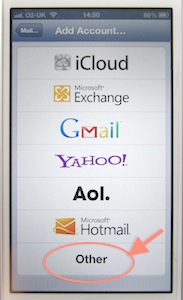
Settings> Mail, contacts, calendars > Add account > Other > Add CalDAV account
Then:
  • Server is google.com
  • User name is your Google user name (the email address or whatever that you sign in with), 
  • Password is your Google account password,
  • Description is optional. 
Then cllick Advanced settings and make sure SSL is On.

2: In Google, select the calendars you want on your iPhone

I noticed that not all my different calendars were showing. So:
  • Open a mobile browser and go to this url: https://www.google.com/calendar/syncselect
  • Sign into Google with your user email and password. 
  • On the list of your calendars, check those that you want on your iPhone.
Done! it works!

3: Set your preferred Google calendar to be the default

Entries added on my iPhone weren't getting through initially - because it had decided to use the inbuilt Birthdays as the default calendar.
  • Go back to Settings > Mail, contacts, calendars > and scroll down to Calendars > Default calendar.
  • You'll see a list of those available. Delete any that aren't on your Google calendar and select the one you want to be your default.
You can also delete all the extraneous additional 'calendars' (that the iPhone is born with, I suppose).

4: Select on your iPhone the calendars you want to see

  • Return to the home screen and go to Calendar.
  • In any view, go to Calendars (top left of the screen) and from the list select those you want it to show on your iPhone. Then you can click the Refresh button bottom left.
After about half a day searching Google for answers, my iPhone does now perfectly synch iPhone < > Google calendar < > desktop Mac, both ways throughout. Solved!
(On my MacBook / iMac I like to use Mozilla's Sunbird with the Provider add-on, but that's a different story.)

PS: Searches on Google didn't throw up the iPhone manual as a possible source of answers, but it is fairly helpful although not as detailed. I'm not sure it gives the complete answer.


Sunday, 10 April 2011

iPhone synching challenges

iPhone 3GS -
Is iTunes on your PC, or hopefully Mac, telling you that synching will remove half your hard won apps? You probably need to go to:
file > Transfer purchases from iPhone
first to get them backed up onto the computer.

They really know how to conceal these things, don't they.