I'm always so pleased when I find a way round some exasperating computer problem that I thought I'd share my moments of triumph ...

Friday, 2 November 2012

Mac - 2 useful applications

If you can remember way back on Macs, they used to show a little icon top R. on the screen to show what application you were in at the time. Well handy, doubtless why Apple abolished this useful feature a long time ago.


However, thanks to Eerko Vissering for developing the little application called Focus, which does the same thing. I've used it with Leopard / Snow Leopard for ages. Eerko has updated it to run on Lion / Mountain Lion. Thanks Eerko!

http://www.macupdate.com/app/mac/11356/focus
http://eerko.nl/software/


Another application I use all the time is QuickApps. This puts a little icon in your menu bar - click on it to show a dropdown list of all your applications.

http://download.cnet.com/QuickApps/3000-2344_4-201757.html


Thursday, 1 November 2012

Preview / Mountain Lion - print selected pages solved

Huh! after much whinging - Yes! one can print just selected pages in Preview. So simple:
  • Open a pdf file, or several pdf files, in Preview
  • Set it to display thumbnails of the pages in the Sidebar (under View)
  • Select the thumbnails of the pages you'd like to print, in the usual ways. You can select pages in several different pdfs, or indeed all the pages in different pdfs. A way to combine images into one pdf file.
  • Tell it to Print - either cmd-P or File > Print
There! in the print dialogue box, you'll see an option: Selected pages in sidebar.

Then you can either print just the pages you want, or save them as a new pdf.


If you're still in Snow Leopard (OS 10.6) then to print selected pages, select as above, and the command is in the File menu below Print.

Friday, 5 October 2012

Mac OS Mountain Lion and Preview functions

I was pretty annoyed when I discovered that lots of useful things that one could do with Preview under Snow Leopard (OS 10.6.8) had been obliterated under Lion. Some have been restored under Mountain Lion, though less conveniently, and I have now found tedious workarounds for some others.

There was quite an outcry about this. It does seem to me that Apple is very arrogant about its software. I don't know how they could have left out these basic functions. They absolutely can't have done any research or testing with real life users. I wonder in fact if this is an indication that Apple is reaching its peak. Just thinking.

If you want to tell Apple where you think it's made a mistake, go here:
http://www.apple.com/search/?q=feedback&section=mac&geo=uk

In my next post I'll explain how to do some of the things we used to do so easily with Preview.


Monday, 25 June 2012

MacBook Air drops WiFi connection - solved

We had to change the wifi security to WEP to accommodate a primitive PC laptop. After that I had to re-log in to the wifi network every time it woke up. Absolutely maddening.

Lots of internet searching and different solutions later, eg delete network and re-add it, etc. Finally a sensible suggestion from someone: Run Repair Permissions from disk utility.

Problem solved, connection drops no more. So simple!

A few weeks later ...

This is from me! I really was doubtful that the solution could be that simple, but my MacBook Air was dropping the connection again, this time to a brand new BT HomeHub router.

So I ran Permissions Repair and guess what, it's fixed again! Hope it lasts.

And subsequently ...

Dropped again - this time I just did "turn WiFi off" from the top menu bar, and then on again, and it picked up again.

Tuesday, 19 June 2012

Convert ebooks for any reader - Kindle etc

As ever we have to run to keep up with the shifting download urls. As I post, here are the latest DeDRM tools, v5.1, the vital component for ebook conversion:

http://www.datafilehost.com/download-c263696f.html

To use:
- Install Calibre and open it
- Go to Calibre's Preferences (under Calibre in the top menu)
- Under Advanced, click Plugins
- Select Load plugin from file
- Navigate to the folder of Tools
- In the sub folder inside that, Calibre plugins, click and load each of the zip files in turn
- Click the green Apply tick, top left

Well, this setup works for me - Mac OS Lion, Kobo ereader, ebook purchased from let's say a large river site. Although I have to admit it is quite an elaborate to-do.

Monday, 16 April 2012

Read Kindle books on Kobo (or other reader)

Yes you can! it may take a bit of fiddling but although I would love to resist Amazon's world domination project,  I find Amazon format books are both cheaper and also better formatted for reading.

Apprentice Alf is the leader in this dark art, in his blog, http://apprenticealf.wordpress.com/ (see his comment on this post, below). You will find useful discussion and links to the up to date conversion tools there.

The current tools are here: http://www.datafilehost.com/download-a28d695b.html: download and unzip the folder. Don't be daunted by the technical chat, just follow the instructions in the ReadMe files.

To free up Amazon e-books (this is on a Mac, there are similar facilites for a Windows pc) - move the zip file DeDRM_5.0.app.zip onto your desktop (or other convenient folder), click it to unpack to a curly icon DeDRM 5.0.app.

Your Kindle book files are in My Kindle Content. They don't have helpful titles, but sort them by date, and it's the .azw file that is the book. Drag this onto the curly icon and it will save a freed up copy of the book for you. You should be able to upload that to your reader, via the free Calibre software or even via your normal reader software.

Calibre is very handy, search to download it for free (be fair, do donate). Once Calibre is installed, you can install the DeDRM plugins:

Open Calibre preferences > Plugins > button at the bottom, Install plugin from file > Navigate to the DeDRM folder with the Calibre plugins > click on one to install it

Repeat until all are installed. Restart Calibre.

Then, you can just add the book file to the Calibre library and upload it to your device - select Autoconvert and it will do the conversion as part of the process.

Tuesday, 3 April 2012

iPhone - delete apps from both computer and iPhone

Quite a few queries online about this.

Refers to a Mac.
Assumes iTunes is open and your iPhone is plugged into your computer.

I must just have a quick rant: I HATE the way that "synch" works - one cannot tell which set of data are being synched to what, which data are being synched ... I could go on ... clearly Steve never had much to do with the software aspects of his desirable kit.

Anyway, look at the top of the iTunes menu under Library and you'll see Apps. Click that and you have 2 views of your apps, either Apps (all of them) or Genres (inconvenient in my opinion).

Left click on an app and one option is Delete. Also you can Show in finder, and I suppose delete it from the list of files as well.

You also need to delete it from the iPhone or else it will simply copy it back to your computer next time you "synch". To do this, hold your finger on the app on the iPhone screen and then press the little cross in the corner of the icon.


Monday, 12 December 2011

Word for Mac 2011: sum table cells including blanks

Whoo, another Cracked-it moment!

Word 2011 for Mac - just acclimatising. At last an improvement on the previous version, except Help seems non-existent, even online. Whatever happened to the manual?

In a table, how to sum a column (or row) of figures that contains blank cells? AutoSum only adds up the immediate filled cells.

Put the cursor in the table cell where you want the total.
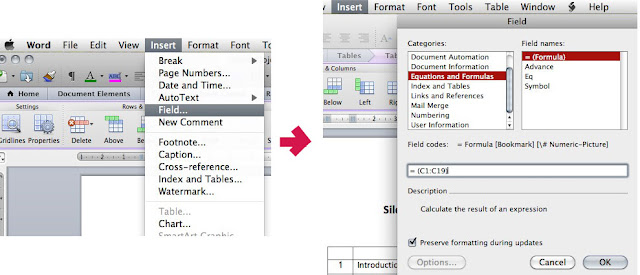
Top menu bar, go to Insert, then Field.
Type your required range in, e.g. =SUM(C1:C10).
Press return, and voila!

Field can be one of several useful items including word count, total etc.
Only snag is, the Field doesn't update automatically. To update it place the cursor in the field and right click - from the pull down menu, an option is Update field.