I'm always so pleased when I find a way round some exasperating computer problem that I thought I'd share my moments of triumph ...

Thursday, 29 August 2013

AirParrot with Apple TV - show full screen

He's right, I've copied in his comment - no need for my earlier complicated instructions ... Thank you!


in AirPArrot preferences there is an option called 'Underscan', and if you set this option to 0% you'll fix the full screen problem without the need of TV zoom


Only downside, less excuse to buy one of the forthcoming glorious new MacBook Pro's that will simply use AirPlay.

Friday, 2 August 2013

MacBook Air drops WiFi connection - again

WiFi still dropping

Well, despite my moment of triumph in the previous post, my MacBook Air still kept dropping the WiFi connection. My earlier recommendation seemed to work for a while. So then I tried restarting the computer, and switching wifi off and on again, which worked, but what a pain.

I changed the security settings on my router to WPA2 (was WPA/WPA2). That may have improved things a bit.

Change the Mac's network settings

For those who aren't afraid to delve into the Mac's system here are some more suggestions,  relayed from macdailynews.com/ .

I chose their Fix #2, to change the MTU size.

Eh?
MTU stands for Maximum Transmission Unit and controls the largest packet size allowed for transmission over the network. If this setting is greater than network capacity, the computer will experience packet loss and dropped connections
That post has detailed instructions, although my screens looked a bit different to theirs. I reset the MTU to 1453, a magic number apparently. Hasn't dropped again as yet.

Investigate your network

Temptingly for those who like to delve into the works, this post also says how to investigate your wireless network in detail. It's getting crowded out there, I discovered just how many other networks there are around mine. You use Wireless diagnostics, on mine it's in Applications. (I definitely do not recommend changing anything other than the settings described in Fixes #1 and  #2, as networks are extremely complex and delicate.)

Move the router?

A'hm, the author does suggest another simple solution - move the router to a better position:
Using Wi-Fi Diagnostics I discovered my wireless signal to be much weaker when keeping the wifi router out of sight behind an LCD TV, simply moving the router away from the TV a few feet dramatically boosted signal strength. Run the app yourself and see what kind of performance boost you can get by adjusting your own wifi network.

Saturday, 30 March 2013

Use your Google calendars on your iPhone


If you use Google's calendar you can synch it with your iPhone's built in calendar (which I must say, is a really nice app). You don't have to use Apple's Cloud, or be restricted to iCal on your Mac.

Google has now provided instructions (spoken, even!) for synching your mobile device calendar with Google's, including iPhone. Better late than never.

Here's how:

1: Set up a Google Calendar account on the iPhone

On your iPhone go to:
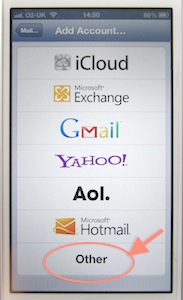
Settings> Mail, contacts, calendars > Add account > Other > Add CalDAV account
Then:
  • Server is google.com
  • User name is your Google user name (the email address or whatever that you sign in with), 
  • Password is your Google account password,
  • Description is optional. 
Then cllick Advanced settings and make sure SSL is On.

2: In Google, select the calendars you want on your iPhone

I noticed that not all my different calendars were showing. So:
  • Open a mobile browser and go to this url: https://www.google.com/calendar/syncselect
  • Sign into Google with your user email and password. 
  • On the list of your calendars, check those that you want on your iPhone.
Done! it works!

3: Set your preferred Google calendar to be the default

Entries added on my iPhone weren't getting through initially - because it had decided to use the inbuilt Birthdays as the default calendar.
  • Go back to Settings > Mail, contacts, calendars > and scroll down to Calendars > Default calendar.
  • You'll see a list of those available. Delete any that aren't on your Google calendar and select the one you want to be your default.
You can also delete all the extraneous additional 'calendars' (that the iPhone is born with, I suppose).

4: Select on your iPhone the calendars you want to see

  • Return to the home screen and go to Calendar.
  • In any view, go to Calendars (top left of the screen) and from the list select those you want it to show on your iPhone. Then you can click the Refresh button bottom left.
After about half a day searching Google for answers, my iPhone does now perfectly synch iPhone < > Google calendar < > desktop Mac, both ways throughout. Solved!
(On my MacBook / iMac I like to use Mozilla's Sunbird with the Provider add-on, but that's a different story.)

PS: Searches on Google didn't throw up the iPhone manual as a possible source of answers, but it is fairly helpful although not as detailed. I'm not sure it gives the complete answer.


Tuesday, 12 March 2013

Read Kindle books on Kobo or other reader - how to

Yes you can! Now, concentrate.

1. To remove the DRM code (digital rights management)

Apprentice Alf is the leader in this dark art. In his blog, http://apprenticealf.wordpress.com/ you will find useful discussion and links to the up to date conversion tools.

Download the current tools (pay attention to Apprentic Alf's instructions) and unzip the folder. Don't be daunted by the technical chat, just follow the instructions in the ReadMe files.

To free up Kindle e-books (this is on a Mac, there are similar facilites for a Windows pc) - move the zip file DeDRM_5.0.app.zip onto your desktop (or other convenient folder), click it to unpack to a curly icon DeDRM.app.

Your Kindle book files are in My Kindle Content. They don't have helpful titles, but sort them by date, and it's the .azw file, the largest size, that is the book. Drag this onto the curly icon and it will save a freed up copy of the book for you. You should be able to upload that to your reader, via the free Calibre software or even via your normal reader software.
  • A Kindle book I recently bought didn't turn up in My Kindle Content until I'd opened the Kindle desktop reader and added it to my library there. Voila, there was the .azw file.
  • If you are using Calibre with the DeDRM plugins installed, as below, you don't need to do the above separately.

2. To manage your ebooks library and reader content using Calibre

Calibre is a generic ebooks management application, very handy, search to download it for free (be fair, do donate). Using Calibre you can:
  • manage the books on your ereader
  • assemble all your ebooks from whatever source in one folder
  • read them on your desktop 
  • automatically convert books from different formats for your own ereader, whatever that is
and much much more besides which I haven't tried out.

3. To set up Calibre to automatically convert books for upload

  1. Downloaded and instal Calibre
  2. Install the DeDRM plugins:
    - Go to Calibre's Preferences (under Calibre in the top menu)
    - Under Advanced, click Plugins
    - Select Load plugin from file
    - Navigate to the downloaded folder of Tools
    - In the sub folder inside that, Calibre plugins, click and load each of the zip files in turn
    - Click the green Apply tick, top left
  3. Repeat until all are installed. Restart Calibre.
Then, Calibre's menus are self explanatory. You can just add the book file to the Calibre library and upload it to your device - select Autoconvert and it will do the conversion as part of the process, as long as the DeDRM plugins are installed.

Saturday, 23 February 2013

Your Google calendar on your desktop - Sunbird

I much prefer Sunbird to iCal for synching with a Google calendar (or any other online calendar, I guess). For instance you can show not just the current month but the current 5 or 6 weeks in one view. - October 2013, I just had to check this following an upgrade to OS 10.8, Mountain Lion - it all works.

Sunbird is free, developed by Mozilla of Firefox browser and Thunderbird email client. (Similarly I prefer T-bird to Mail). They are trying to make people give up Sunbird, which is a stand alone calendar, and take to Lightening which works as part of Thunderbird. Like many others I want my calendar separate, thanks.

You can still get Sunbird and it works on Mac OS 10.6, 10.7 and 10.8 (that's Snow Leopard, Lion and Mountain Lion). Sunbird v. 1.0b1 is here (for Windows, Linux and Mac).

Once you've downloaded and installed it, you need an extra bit of software - Provider. This enables you to link to your Google calendars. Download and save it from here - Provider 0.6b1 (scroll down until you see this version, others only work with Lightening).

Then, back to Sunbird. Top menu, Tools > Extensions > Install. Then navigate to where you saved Provider and select it, confirm Install if asked.

Okay, now you're set up to communicate with Google calendar, but where are your events etc? You have to add a link to each of your calendars, one at a time.

Open a browser and go to your Google Calendar. Highlight a calendar and click the little down arrow to the right. Select Settings.

Scroll down the Settings screen and you'll see Calendar address. Click iCal and highlight and copy the code you see.

Now back to Sunbird. File > Subscribe to remote calendar > Create a new calendar - On the Network >  Google calendar - and paste in the code you copied from Google. You'll be asked for your Google account name and password. Choose a name and a colour for the calendar and you're done.

Repeat for each of your Google calendars and any public ones you want to add.

One last thing, Sunbird > Preferenced > Advanced > Encryption, make sure Use SSL 3.0 is ticked and use TLS 1.0 is not ticked.

A bit of a faff, but worth it I find.

iPhone calendar - even better, Fantastical

While we're on calendars, I thought the iCal one was fine on the iPhone until I found Fantastical (£1.99 I think). It's an app that simply provides a new calendar interface. Just install Fantastical on your iPhone and it will ask you to give it permission to use your calendars (provided you have linked to them as in the previous posts). Then they, fantastically, appear.


Dates will display across the top of the screen - pull down the tab for a monthly view. Pull down again to return to the list. Scroll around very quickly and nicely - all sorts of other refinements. Nice.

Saturday, 16 February 2013

iPhone calendar - show public holidays

The previous post dealt with synching iPhone's calendar with Google calendar, but following that process you don't get public holidays showing.

Here's how to do that.

First do Stage 1 on your iPhone:
Settings> Mail, contacts, calendars > Add account > Other > only this time, select Add subscribed calendar.

Then, the server is whatever public holiday calendar you wish. I used Apple's purely because it's easy to find the server address:
ical.mac.com/ical/UK32Holidays.ics

For US public holidays, it's
ical.mac.com/ical/US32Holidays.ics

Or if you're using Google calendars anyway, here's Google's:
https://www.google.com/calendar/ical/uk__en%40holiday.calendar.google.com/public/basic.ics